
introduction à l'éditeur de texte notepad++
ou plutot un mémo de quelques fonctions (pas si simples, mais très pratiques)
ou plutot un mémo de quelques fonctions (pas si simples, mais très pratiques)
02/2024 version v8.6.2 ok mais cette fois c'est le correcteur ortho qui est parti il faut aller dans "modules d'extension / gest. des mod. d'ext" chercher "DSpellCheck" pour retrouver "ABC" et les petites vagues rouges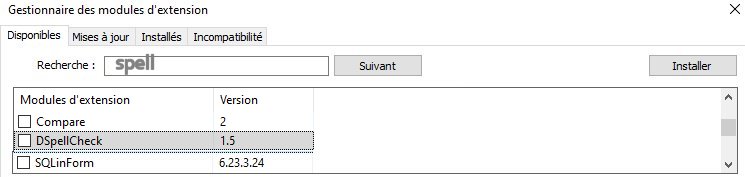
11/2023 version N++ v8.5.7 (au boulot) ... change as adm_... "settings / pref/ file asso." - .htm .txt .... so in explorator/open with (again ok) or: regedit 01/2022 version: N++ v8.2 (portable, at home) pour le dark mode 02/2019 - version: N++ v7.5.9 - N++ v7.5.6 home 04/05/2019 - debug info
Notepad++ v7.6.6 (32-bit) Build time : Apr 3 2019 - 23:49:50 Path : C:\Program Files (x86)\Notepad++\notepad++.exe Admin mode : OFF Local Conf mode : OFF OS : Windows 10 (64-bit) Plugins : ComparePlugin.dll mimeTools.dll NppConverter.dll NppExport.dll12/05/2019 retour v7.6 - debug infoNotepad++ v7.6 (32-bit) Build time : Nov 12 2018 - 23:51:42 Path : C:\Program Files (x86)\Notepad++\notepad++.exe Admin mode : OFF Local Conf mode : OFF OS : Windows 10 (64-bit) Plugins : DSpellCheck.dll mimeTools.dll NppConverter.dll NppExport.dllcomplement DSpellCheck (1.4.6.0) fonctionne à nouveau mais "compare" n'est plus là il faut le réinstaller... Compléments / Plugin admin Available [x] Compare (v2) A very useful compare plugin to show the differences between 2 files (side by side). Author: Ty Landercasper, Jean-Sebastien Leroy, Pavel Nedev Homepage: https://github.com/jsleroy/compare-plugin
modification de l'éditeur: about:configview_source.editor.external = true view_source.editor.path = C:\Program Files (x86)\Notepad++\notepad++.exe
pour supprimer des lignes contenant divers trucX:

1. Ctrl+F
2. dans le tab "Marquer"
3. Rechercher [truc1_______]    [ Rechercher tout ]       + truc2
   [x] Marquer les lignes

  144   xxxtruc1
  145    xx
  146   truc1xxx

4. Recherche / Signet / supprimer les lignes marquées

-- idem .en ---
1. Ctrl+F
2. in the tab "Mark"
   [x] Bookmark line
3. Find what: [truc1_______]    [ Mark all ]
4. Search /  Bookmark / Remove Bookmarked Lines
pour supprimer les lignes 1000 à 2000:

1. Ctrl+G 1000 [ Zyva ] = aller ligne 1000
2. Edition / Debut/Fin selection

3. Ctrl+G 2000 [ Zyva ] = aller ligne 2000
4. Edition / Debut/Fin selection

 1000 xxxxx
 1001 xxxxx
 ...  xxxxx
 2000 xxxxx
 2001 xxxxx

5. Edition / Supprimer         ou touche [ Del ]


-- idem .en ---
1. Ctrl+G 1000 [ Go ] = go to line 1000
2. Edit / Begin/End select.

3. Ctrl+G 2000 [ Go ] = go to line 2000
4. Edit / Begin/End select.

 1000 xxxxx
 1001 xxxxx
 ...  xxxxx
 2000 xxxxx
 2001 xxxxx

5. Edit / Delete
remplacer
recherche:  ^(.*?)$\s+?^(?=.*^\1$)
par......:
(x) expression  reguliere


ou (si installé) avec plugin "TextFX"
Se mettre en mode "Expression régulière" Ex1: ajouter le tag de fin (ici "verse" n'est pas en début de ligne)src: + Ex2: avec "<h3" (en début de ligne)<verse>words words words </verse> <verse>words words words words <verse>more text </verse> <verse>other words. </chapter> Find: (^\h+<verse(?!.*verse>\h*).*?)((</.*?>\h*)*)$ Replace: $1</verse>$2 <h3>words words words </h3> <h3>words words words words <h3>more text </h3> <h3>other words. </h2> Find: (^<h3(?!.*h3>\h*).*?)((</.*?>\h*)*)$ Replace: $1</h3>$2
pour N++ voir dans expressions régulières ✨
1. remplacer une partie du nom de photo -- dans .htm
... img src="P123456.jpg" title="P123456nom.jpg" alt="" ... -------find: title="P\d[7] replace: title=" (*) RE remove picture number
2. supprimer une ligne contenant le mot -- dans .gpx
voir aussi nppmanuel.nliautaud.fr/expressions-regulieresfind: .*<cmt>.*\r?\n replace: ne rien mettre (*) RE 
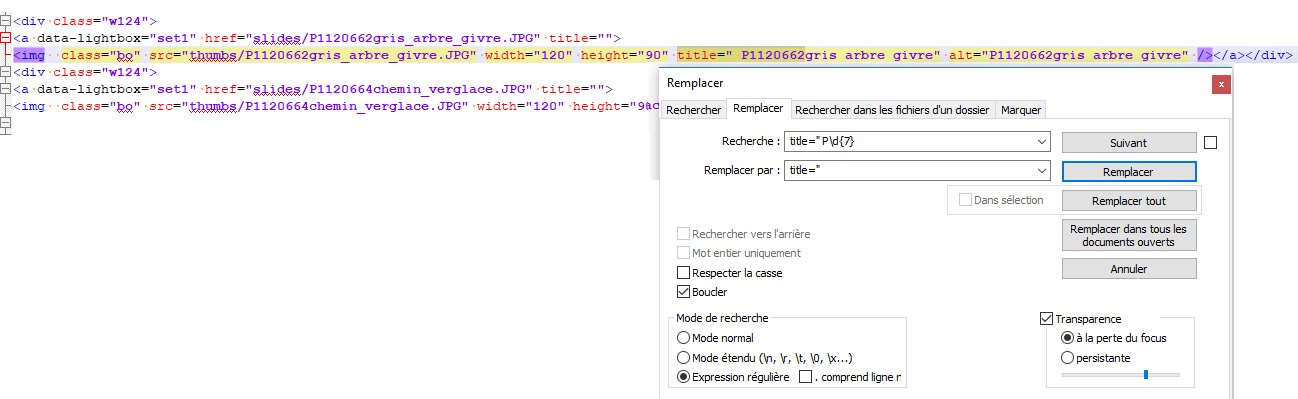 remove picture number
un genre de complétion (10/2025) mais enlevé après tests car il faut tout de même se souvenir des "raccourci"
from Npp import *
# === Dictionnaire de snippets ===
# clé = abréviation tapée
# valeur = texte à insérer
snippets = {
"ccc": "<span class="wk"></span>",
"ccc2": "<meta name="Author" content="moi">",
"style2": ".prompt { color: #E38D54; background-color: #303030; }",
"fff": "texte pour test rapide",
# Ajoute autant de snippets que tu veux
}
# === Récupérer le mot sous le curseur ===
pos = editor.getCurrentPos()
word_start = editor.wordStartPosition(pos, True)
word_end = editor.wordEndPosition(pos, True)
word = editor.getTextRange(word_start, word_end)
# === Remplacer si mot reconnu ===
if word in snippets:
editor.setTargetStart(word_start)
editor.setTargetEnd(word_end)
editor.replaceTarget(snippets[word])
Installer PythonScript (si ce n’est pas déjà fait):
Plugins → Plugins Admin → PythonScript → Installer
redémarrer Notepad++

Créer le script :
Plugins → PythonScript → New Script

Nom : Snippets.py
C:\Users\kc\AppData\Roaming\Notepad++\plugins\ config\PythonScript\scripts
Coller le code ci-dessus → sauvegarder

Attribuer un raccourci clavier :
Settings → Shortcut Mapper → Plugin Commands
chercher ton script → assigner par exemple F6

Utilisation :
 tape ton abréviation (ccc, ddd) +
 F6 → le texte complet s’insère à la place